
Type ™ directly into your UTF-8 page, or drop in ™ if you want a named entity. Both render identically. Here’s every option side by side:
- Literal character:
™ - Named entity:
™ - Decimal reference:
™ - Hex reference:
™ - CSS content property:
content: "2122"
All four HTML variants point to the same Unicode code point, U+2122, so visually there’s zero difference between them in a modern browser.
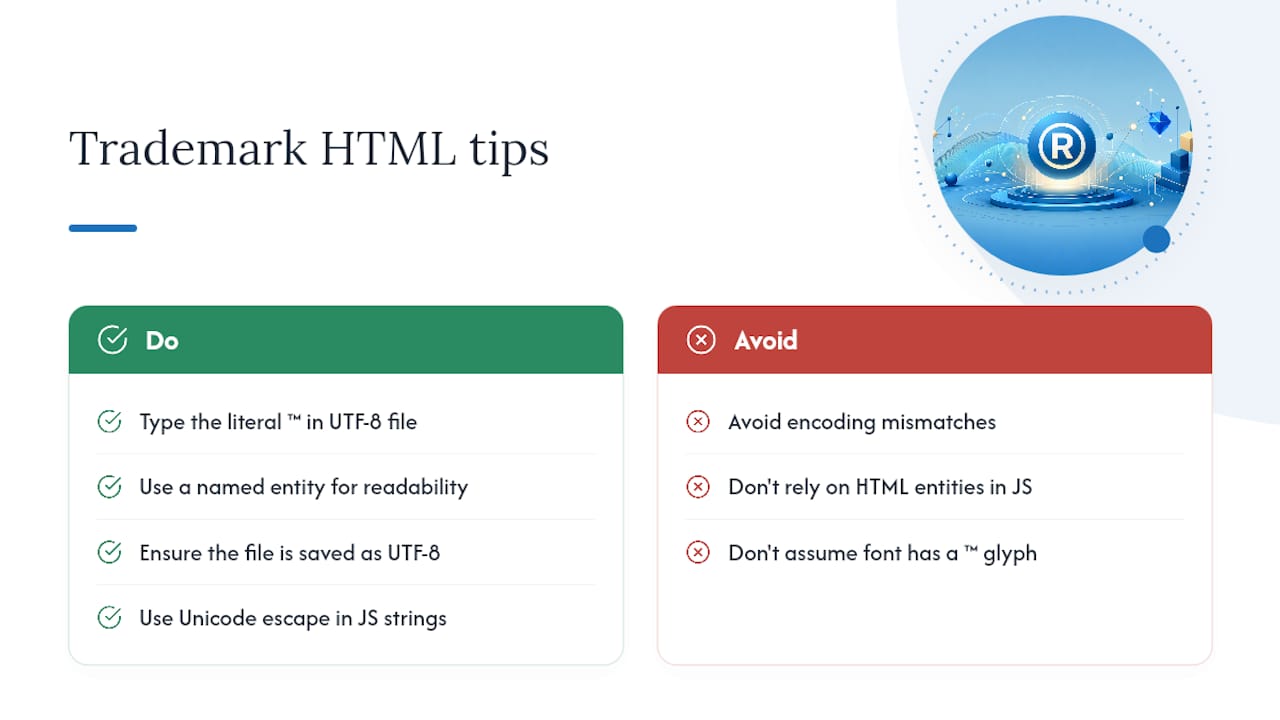
Pro Tip: Always confirm your file is saved as UTF-8 and your page includes <meta charset="utf-8">. If a named entity ever fails to render, the decimal or hex reference almost always works as a fallback.
Key Takeaways
The trademark symbol renders identically whether you use the literal ™ character, ™, ™, or ™, because all four map to the same Unicode codepoint.
| Point | Details |
|---|---|
| Four formats, one glyph | Literal ™, ™, ™, and ™ all resolve to Unicode U+2122. |
| Prefer literal on UTF-8 sites | Cleaner source code, but confirm <meta charset="utf-8"> is set correctly. |
| Fall back to numeric references | Use ™ or ™ when named entities break in legacy editors. |
| Fix fallback fonts with CSS | Wrap the symbol in a styled span or use ::after { content: "2122"; }. |
| Grab the code instantly | Copyrighttoolkit’s symbol pages keep the ™, ®, and © codes ready to copy without a lookup. |
Table of Contents
- How to insert the trademark symbol in HTML
- Named entity vs numeric reference vs literal character: what’s the real difference?
- Styling the ™ symbol to match your typeface
- Keyboard shortcuts for typing ™ without touching HTML
- Fixing common ™ rendering problems
- Copy-paste code snippets for real projects
- Frequently Asked Questions
- Sources
How to insert the trademark symbol in HTML
Getting ™ onto a page depends on where you’re putting it. Plain body text, an HTML attribute, and a JavaScript template each behave a little differently.
-
Inline text. Drop any of these directly into your markup:
<p>WidgetPro™</p>,<p>WidgetPro™</p>,<p>WidgetPro™</p>, or<p>WidgetPro™</p>. Every one produces “WidgetPro™” on screen, a point W3Schools’ symbol reference demonstrates with its own live examples. -
Inside attributes. Attributes like
titleandaltaccept the same forms, but the named entity is often the safer bet in hand-written attribute strings:<img alt="WidgetPro™ logo" src="logo.png">. Skip the literal character here only if your editor or build pipeline has a history of mangling non-ASCII bytes in quoted strings. -
Inside JavaScript strings and templates. In a JS template literal, use the Unicode escape instead of an HTML entity, since entities only get decoded by an HTML parser:
const name = `WidgetPro™`;. If you’re injecting that string into the DOM viainnerHTML, the literal character also works fine because the browser is parsing it as HTML at that point. -
Watch your WYSIWYG editor. Editors like TinyMCE or CKEditor sometimes convert a pasted ™ into an entity automatically, and sometimes strip it entirely if the paste comes from a source with odd encoding. When the symbol vanishes after saving, switch to the editor’s source/code view and insert
™directly rather than pasting the glyph.
Named entity vs numeric reference vs literal character: what’s the real difference?
Functionally, nothing. ™, ™, ™, and the literal ™ all resolve to the exact same Unicode Trade Mark Sign, and a properly configured browser renders them identically. The difference shows up in edge cases, not in the everyday page load.
- Named entity (
™): Easiest to read in raw source code, but support has occasionally been inconsistent in older or oddly configured editors and some environments handle it less reliably than the numeric forms. - Decimal (
™) and hex (™) references: The most universally supported option, since they map straight to the codepoint without relying on a browser’s entity table. Reach for these when you’re troubleshooting a rendering issue or working with legacy systems. - Literal character (™): Clean and legible in source, ideal for UTF-8 workflows, but only safe if you’re certain your file, database, and server headers all agree on UTF-8 encoding.
Unicode’s own guide to legal symbols recommends using the actual character where possible, falling back to entities only when the environment demands it.
Pro Tip: Default to the literal ™ on any UTF-8 site. The moment you see a garbled character where ™ should be, swap in ™ and the problem almost always disappears.
Styling the ™ symbol to match your typeface
The raw glyph often looks wrong sitting next to your headline font, too big, too low, or borrowed from an entirely different typeface. CSS gives you full control over how it sits.
- Use a targeted span:
<span class="tm">™</span>with.tm { font-size: 0.6em; vertical-align: super; }for a proper superscript look. - Generate it with CSS instead of typing it in markup:
.brand::after { content: "2122"; font-size: 0.65em; }. - Fallback fonts cause most of the visual mismatch. If your body font lacks a ™ glyph, the browser silently substitutes something like Times New Roman, and the mismatch is obvious mid-sentence, a problem covered in this font-fallback fix for HTML symbol entities.
Pro Tip: A styled span is almost always the simpler fix. Reach for @font-face with a unicode-range only if you’re already shipping a custom font and need pixel-perfect consistency across dozens of pages.
Keyboard shortcuts for typing ™ without touching HTML
You don’t need to open a code editor just to drop a ™ into a Slack message or a Google Doc heading before it ever reaches your markup. Each major platform has a built-in method, drawn from standard platform input conventions for legal symbols.

| Platform | Shortcut |
|---|---|
| Windows | Alt (numeric keypad) |
| macOS | Option+2 |
| Mobile (iOS/Android) | Long-press the “TM” suggestion or copy-paste |
| Any browser | Copy ™ from this page and paste into source |
Paste it straight into a UTF-8 file and it will display correctly without any HTML at all.
Fixing common ™ rendering problems
A replacement character, a diamond with a question mark, or a plain box where ™ should be almost always means an encoding mismatch. Confirm <meta charset="utf-8"> sits in your <head> and that the file itself was saved as UTF-8, not Latin-1 or Windows-1252. That single fix resolves the majority of cases, a troubleshooting step W3Schools’ own symbol guide echoes for anyone working through symbol display issues.
- WYSIWYG editors that strip entities: switch to the source/code view and paste
™directly, bypassing the visual editor’s autocorrect behavior. - Symbol shows up in the wrong font: wrap it in a styled
<span>with an explicitfont-familystack rather than letting the browser pick a fallback. - Works locally but breaks after deployment: check your server’s HTTP response headers for the declared charset. A mismatch between the file’s actual encoding and what the server announces is a frequent, invisible cause of broken symbols.
Pro Tip: Build a five-line test HTML file with nothing but the ™ symbol in all four forms, upload it to your server, and view the source. If it’s broken there, the problem is encoding, not your CMS.
Copy-paste code snippets for real projects
A handful of patterns cover almost every situation you’ll run into.
-
Inline HTML:
<p>Acme™ software</p>or<p>Acme™ software</p>, both render identically per the HTML symbol code examples developers commonly reference. -
Attribute-safe usage:
<img alt="Acme™ icon">for HTML attributes; inside a JSON blob stored in adata-*attribute, use the escaped Unicode form (™) rather than an HTML entity, since JSON parsers don’t decode HTML entities. -
CSS generated content:
.badge::after { content: "2122"; }inserts the symbol purely through styling, useful when you want it in the design layer instead of the markup. -
JavaScript:
`Acme${'™'}`or simply"Acme™"inside any string literal.
One caution worth flagging: if you’re rendering through a server-side template engine (Handlebars, Jinja, ERB), check whether it auto-escapes HTML. Passing ™ through an auto-escaping template can double-encode it into ™, which displays as literal text instead of the symbol. When in doubt, pass the literal ™ character through your template variables instead of the entity.
Which format should you actually use in production?
For UTF-8 projects, the literal ™ character is the cleanest choice, easier to read in source and simpler to maintain over time. Keep ™ in your back pocket for legacy encodings or any editor that mangles the raw glyph. Neither choice is wrong; one just costs you a little more vigilance around encoding.
Skip the lookup next time you need a symbol
Copyrighttoolkit keeps the exact codes for ™, ®, and © on one page you can copy from in seconds, instead of digging through old code snippets or guessing at Alt codes mid-project.
If you’re also using the registered mark, the guide to typing ® correctly covers the same copy-paste and keyboard approach for that symbol, and the TM vs SM comparison is worth a look if you’re not certain which mark actually applies to your brand. For the legal side of things, this rundown on fair use and takedown policy is a useful companion read. Start with the full symbol toolkit and bookmark it before your next project needs a quick copy-paste fix.
Frequently Asked Questions
What’s the simplest way to add the trademark symbol in HTML?
Type the literal ™ character directly into your UTF-8 file, or use ™ if you prefer a named entity. Both display the same symbol in every modern browser.
Why does my ™ symbol show up as a box or question mark?
That’s almost always an encoding mismatch. Add <meta charset="utf-8"> to your page’s head and confirm the file itself was saved as UTF-8.
Should I use ™ or ™?
Use ™ for readability in modern UTF-8 projects. Switch to ™ or ™ if you’re dealing with a legacy system or an editor that doesn’t reliably support named entities.
Can I use the ™ symbol inside a JavaScript string?
Yes, use the Unicode escape ™ inside a JS string or template literal rather than an HTML entity, since JavaScript doesn’t decode HTML entities on its own.
Why does my ™ look like a different font than the rest of my text?
The browser is likely falling back to a different typeface because your main font lacks a ™ glyph. Wrap the symbol in a <span> with an explicit font stack to fix the mismatch.
Sources
- U+2122 TRADE MARK SIGN ™ — Unicode Character
- HTML Symbols
- Difference between HTML entities for trademark symbol