Paste this directly into any Premiere Pro text layer right now: ©
That single character, Unicode U+00A9, is all you need. Copy it from this page, switch to Premiere, select your Type tool, click inside your text layer, and paste. Done. On Windows, you can also hold Alt and type 0169 on the numeric keypad. On a Mac, press Option+G. Either way, the symbol lands exactly where your cursor sits, whether you’re working in the Essential Graphics panel or a Legacy Title.
The fastest method for most editors: copy © from a browser tab, switch to Premiere, and paste. No memorizing Alt codes, no hunting through menus.
Pro Tip: Always paste the copyright symbol into a text layer that uses a system font like Arial or Helvetica first. Some decorative fonts lack the glyph entirely, which causes a blank box to appear in your export.
Key Takeaways
The fastest, most reliable way to add a copyright symbol in Premiere Pro is to copy © directly and paste it into an Essential Graphics or Legacy Title text layer using a system-safe font.
| Point | Details |
|---|---|
| Fastest method | Copy © and paste into your Premiere text layer; works on Windows and Mac without any shortcut memorization. |
| OS shortcuts | Windows: Alt+0169 (numeric keypad); macOS: Option+G. Use Character Map or Character Viewer when no numpad is available. |
| © vs ℗ | Use © (U+00A9) for video and visual works; use ℗ (U+2117) only for sound recording copyright notices. |
| Fix blank-box glyphs | Switch to a system font like Arial or Helvetica if the symbol appears as a box; rasterize the clip to lock it for export. |
| Copyrighttoolkit | Visit Copyrighttoolkit.com for one-click copying of ©, ℗, ®, and ™ without opening any system utility. |
Table of Contents
- How to insert the copyright symbol in Premiere Pro, step by step
- Keyboard shortcuts and Unicode codes for every setup
- How to use Character Map, On-Screen Keyboard, and macOS Character Viewer
- Fixing common problems with the © symbol in Premiere
- Which symbol should you use: © vs ℗ vs ®?
- Practical workflow tips for editors
- Get the © symbol in one click
- Sources
How to insert the copyright symbol in Premiere Pro, step by step
The workflow differs slightly depending on which text system you’re using. Modern Premiere projects use Essential Graphics; older sequences may still rely on Legacy Title.
Essential Graphics text layer (current workflow)
- Open the Essential Graphics panel (Window > Essential Graphics).
- Click New Layer > Text, or select the Type tool (T) and click directly in the Program Monitor.
- Place your cursor where the © should appear.
- Paste the symbol (Ctrl+V on Windows / Cmd+V on Mac) or type it with your OS shortcut.
- Highlight the symbol and adjust font size, kerning, and position in the Essential Graphics panel as needed.
- If the symbol appears as a small box, see the troubleshooting section below.
Legacy Title workflow (older projects)
- Go to File > New > Legacy Title (or open an existing title from your Project panel).
- Select the Type tool inside the Title Designer window.
- Click in the canvas and paste or type ©.
- Adjust font, size, and safe-margin position, then close the Title Designer. The title clip appears in your Project panel ready to drag onto the timeline.
The Essential Graphics panel is the right place for new work. Legacy Title still functions in current Premiere versions but Adobe has not actively developed it for years, so font rendering there can be less predictable.
Keyboard shortcuts and Unicode codes for every setup
Community-confirmed methods put Alt+0169 and Option+G at the top of the list for most editors. The table below covers every practical option, including Premiere-specific shortcuts from published shortcut references.
| Method | Windows | macOS |
|---|---|---|
| OS keyboard shortcut | Alt+0169 (numeric keypad) | Option+G |
| Premiere title shortcut | Ctrl+Alt+Shift+C | Opt+Shift+Cmd+C |
| Unicode codepoint | U+00A9 | U+00A9 |
| HTML entity | © | © |
| Copy/paste character | © | © |
A note on the numeric keypad: the Alt+0169 method requires a true numeric keypad with Num Lock on. Most laptop keyboards lack one, which is why copy/paste or Character Map tends to be the more reliable fallback on portable setups.
Premiere’s built-in shortcut (Ctrl+Alt+Shift+C / Opt+Shift+Cmd+C) appears in published title-design shortcut lists, but shortcut mappings can vary by Premiere version and custom configurations. If the combination does nothing, open Edit > Keyboard Shortcuts and search “copyright” to see what your installation has mapped.
How to use Character Map, On-Screen Keyboard, and macOS Character Viewer
When you don’t have a numpad and prefer not to copy from a browser tab, your operating system has built-in character utilities that work reliably.
Windows Character Map
- Press Win+R, type
charmap, and hit Enter. - In the font dropdown, select the font you’re using in Premiere (or any font to grab the character).
- Scroll to ©, double-click it, click Copy, then paste into your Premiere text layer.
Windows On-Screen Keyboard (OSK)
- Search “On-Screen Keyboard” in the Start menu and open it.
- Hold the on-screen Alt key, then click 0, 1, 6, 9 on the number pad section. The © character types into whatever field has focus, including a Premiere text layer.
macOS Character Viewer (Emoji & Symbols)
- Press Control+Cmd+Space to open the Character Viewer, or go to Edit > Emoji & Symbols in most apps.
- Search “copyright” in the search bar. The © symbol appears immediately.
- Double-click it to insert at your cursor, or drag it into the Premiere text field.
Quick copy-paste fallback
If you want a one-click source without opening any utility, Copyrighttoolkit keeps © and related symbols ready to copy. Click the symbol, switch to Premiere, paste. Related marks like ℗ and ® are on the same site, so you don’t need to hunt through separate menus when a project needs multiple symbols.
Fixing common problems with the © symbol in Premiere
Symbol shows as a blank box. The font you’re using doesn’t include the © glyph. Switch the text layer to Arial, Helvetica, or another system font, then re-enter the symbol. Using the actual Unicode character rather than a typed approximation like © avoids most rendering inconsistencies, especially in high-resolution exports.

Alt code produces the wrong character or nothing. Num Lock is probably off, or you’re on a laptop without a true numeric keypad. Use Character Map or copy/paste instead.
Symbol disappears after export. This usually means the font isn’t embedding correctly in the export codec. Switch to a safe system font for the text layer, or rasterize the title: right-click the title clip in the timeline, choose Render and Replace, and the symbol bakes into the video as pixels rather than relying on font embedding.
Kerning or spacing looks wrong. Select just the © character in the Essential Graphics panel and adjust Kerning manually. Decorative fonts often have unusual spacing around the symbol even when the glyph exists.
Before you export: do a quick RAM preview of the section containing your copyright notice. A symbol that looks correct on the timeline can still render incorrectly if the font file is missing from the export machine.
Pro Tip: If you’re sending a Premiere project to a collaborator or a color suite, package the project with File > Project Manager and include all fonts. A missing font on the receiving system is the most common reason a copyright notice disappears in someone else’s render.
Which symbol should you use: © vs ℗ vs ®?
For video and visual works, use © (U+00A9). For sound recordings specifically, use ℗ (U+2117), the phonogram copyright symbol. These are not interchangeable.
Under the Berne Convention, copyright protection is automatic from the moment a work is created. You don’t legally need © on your video. Displaying it is still best practice because it puts viewers on notice and can help prevent claims of innocent infringement.
The ® symbol is for registered trademarks only. Using it on a mark that hasn’t been registered with the USPTO is legally problematic. The ™ symbol is the appropriate unregistered trademark claim. For a full breakdown of when ® applies, the registered trademark symbol guide on Copyrighttoolkit covers the distinction clearly.
A standard copyright line for a video looks like this: © 2026 [Your Name or Company]. All rights reserved.
This section is practical guidance for U.S. creators and is not legal advice. Consult an attorney for questions specific to your situation.

Practical workflow tips for editors
- Keep a system-font shortlist for legal text in your projects: Arial, Helvetica, Georgia, and Times New Roman all include © reliably. Decorative display fonts often don’t.
- Use an end-card graphic when font rendering causes problems. Export the copyright notice as a PNG with a transparent background and drop it as a graphic clip. It renders identically on every machine.
- Build a reusable Essential Graphics template. Create a text layer with your standard copyright line, style it, and save it as a Motion Graphics Template (.mogrt). Drag it into any future project and update the year and name in seconds.
- Safe-margin placement matters. Keep copyright text inside the action-safe area (roughly 5% from each edge). Some delivery platforms crop the outer edges, and a notice cut off at the frame edge is worse than no notice at all.
- For multimedia projects with licensed music, add a separate ℗ line crediting the sound recording copyright holder. Mixing © and ℗ into one line is technically incorrect and can cause issues with music licensing documentation.
An editor’s note on these methods
Copy/paste wins for speed and reliability in day-to-day work. Keeping a text snippet or a browser tab open with © ready to paste takes about two seconds per project, and it sidesteps every numpad, font, and shortcut-mapping problem in one move. The Character Viewer on macOS is a close second for anyone who prefers staying inside the OS. Before any export, a quick RAM preview of the title section catches rendering issues early enough to fix them without a full re-render.
Get the © symbol in one click
Copyrighttoolkit.com exists for exactly this situation: you need the symbol now, not after navigating three system menus.
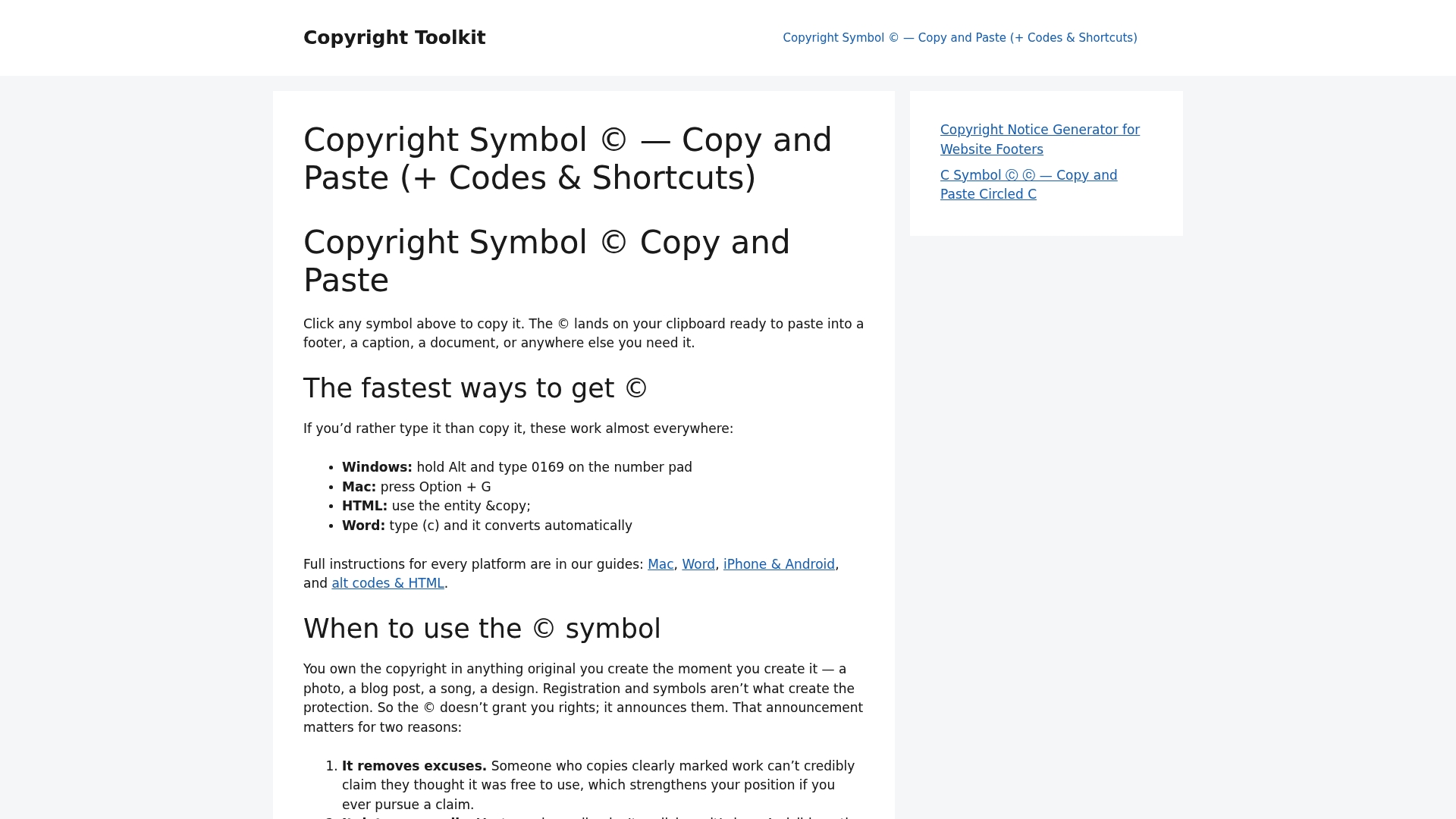
Visit Copyrighttoolkit and click © to copy it instantly. Switch to Premiere, click inside your text layer, and paste. The site also hosts ℗, ®, and ™ on dedicated pages, so when a project needs multiple marks you can grab each one without leaving your browser. For editors working with circled C variants or alternate Unicode forms, those are one click away too. No account, no download, no friction.
Sources
- Copyright, Trademark & Legal Symbols — Unicode Guides
- Copyright symbol
- 26 Essential Title Design Keyboard Shortcuts for Premiere Pro
- The Ultimate Guide to Adobe Premiere Pro Keyboard Shortcuts
- Copyright Symbol — Adobe Community discussion