
On Windows, hold Alt and type 0169 on the numeric keypad. On macOS, press Option+G. On Linux, press Ctrl+Shift+U, type 00A9, then hit Enter. In HTML, use © or ©. On iOS or Android, long-press the C key or open the symbol picker.
Need it right now? Copy from here:
© ® ™ ℗ Ⓒ ⓒ
Key Takeaways
The fastest way to type the copyright symbol depends on your platform: Option+G on macOS, Alt+0169 on Windows, and © in HTML cover the vast majority of use cases.
| Point | Details |
|---|---|
| Windows shortcut | Hold Alt, type 0169 on the numeric keypad (Num Lock must be on). |
| macOS shortcut | Press Option+G in any native app; the symbol matches your current font. |
| HTML and Unicode | Use © or ©; the Unicode code point is U+00A9. |
| Mobile fallback | Long-press the C key on iOS; use the symbols keyboard on Android. |
| Copyrighttoolkit | Copy any IP symbol instantly from Copyrighttoolkit’s symbol pages, no shortcuts needed. |
Table of Contents
- How do you type the copyright symbol on Windows?
- How do you type © on macOS?
- How do you insert © on Linux?
- Inserting © in Microsoft Office, Outlook, Google Docs, and Gmail
- What are the HTML and Unicode codes for ©?
- How do you type © on iOS and Android?
- What are the codes for ®, ™, ℗, and circled C variants?
- What does the © symbol actually mean in the U.S.?
- Copy these IP symbols right now
- The workflow that actually saves time
- Copyrighttoolkit makes inserting © faster
- Sources
How do you type the copyright symbol on Windows?
The fastest method is the Alt code. Turn on Num Lock, hold the Alt key, type 0169 on the numeric keypad (not the number row above the letters), then release Alt. The © symbol appears instantly.
Three other routes work when that fails:
- Character Map: Press Win+R, type
charmap, hit Enter. Find ©, double-click it, then copy and paste. - Emoji panel: Press Windows + . (period), search “copyright,” and click the symbol.
- On-screen keyboard: Open it from the taskbar, enable Num Lock, then use the virtual numeric pad.
Windows Alt codes and Outlook insertion methods are documented by Microsoft for both desktop and email workflows.
Pro Tip: The number row above the letter keys will never produce © with the Alt code method. If Alt+0169 produces nothing on a laptop, press Fn+NumLk first to activate the embedded numeric keypad, then retry.
How do you type © on macOS?
Press Option+G. That’s it. The symbol drops into whatever app you’re working in and stays in your document’s current font, so it never looks out of place.
Two alternatives are worth knowing:
- Character Viewer: Press Control+Command+Space, search “copyright,” and double-click the result.
- Unicode Hex Input: Go to System Settings > Keyboard > Input Sources, add Unicode Hex Input, switch to it, then type Option+00A9. Useful for power users who work with many special characters.
For the related symbols: Option+R gives ®, and Option+2 gives ™. GeeksforGeeks documents all three Option shortcuts along with the Character Viewer and Unicode Hex Input workflows.
Pro Tip: Go to System Settings > Keyboard > Text Replacements and map “©” to ©. Every time you type © and press Space, macOS swaps it in automatically. You can even expand it to a full notice line like “© 2026 Your Name.”
How do you insert © on Linux?
The most reliable method across GTK-based desktops (Ubuntu, Fedora, most GNOME environments) is Unicode input:
- Press Ctrl+Shift+U
- Type 00A9
- Press Enter
The © character appears at your cursor. ChromeOS uses the same sequence, per WinBuzzer’s multi-platform guide.
If you’ve configured a Compose key, the sequence is typically Compose, then O, then C. Check your keyboard settings to confirm which key is mapped as Compose — it varies by distro and desktop environment.
For a visual approach, GNOME users can open GNOME Characters (search “Characters” in the app launcher), find ©, and copy it. KDE users have the KDE Character Selector under the same concept. Both are slower than the Unicode shortcut but useful when you can’t remember the hex code.

Inserting © in Microsoft Office, Outlook, Google Docs, and Gmail
Most desktop apps accept Alt+0169 directly. But each major app has its own dedicated path too.
Microsoft Word: Go to Insert > Symbol > More Symbols, find ©, and click Insert. Word also auto-corrects “©” to © by default through its AutoCorrect feature, so typing © followed by a space or punctuation often does the job without any shortcut at all.
Outlook for Windows: Alt+0169 works in the message body. Alternatively, use Insert > Symbol from the ribbon. Microsoft’s support documentation covers both methods for Outlook specifically.
Google Docs: Go to Insert > Special characters, then either search by name (“copyright”) or draw the symbol in the search box. Gmail doesn’t have a symbol menu, so the fastest option is to paste © from a saved snippet or use the Windows emoji panel (Win+.) or macOS Character Viewer.
- Pro Tip: In any app that supports AutoCorrect or text replacement, mapping “©” to © saves more time than any keyboard shortcut. ThoughtCo recommends this approach as the most practical cross-device habit, since the symbol always matches the surrounding font.
What are the HTML and Unicode codes for ©?
For web pages and email templates, three representations cover every use case:
| Format | Code | When to use |
|---|---|---|
| Named HTML entity | © |
HTML documents, most readable in source code |
| Numeric HTML entity | © |
When named entities aren’t supported |
| Unicode code point | U+00A9 | CSS content property, JSON, programming contexts |
A quick inline example:
<p>Content © 2026 Your Name. All rights reserved.</p>
Using an entity rather than a literal © character matters most in environments that don’t default to UTF-8 encoding. The Wikipedia article on the copyright symbol confirms U+00A9 as the official Unicode code point, with © and © as its HTML equivalents. In a UTF-8 page, a literal © is perfectly safe. In dynamically generated HTML or older email clients, the entity form is the safer bet.
How do you type © on iOS and Android?
iOS: Long-press the C key on the standard keyboard. A small popup appears with ©, among other variants. Tap it. If that doesn’t work on your keyboard layout, tap 123 to open the numbers view, then tap the **#+= ** key to reach the symbols page where © appears directly.
Android: Tap 123 or ?123 to switch to the numbers/symbols keyboard, then look for © on the symbols page. On some keyboards it’s one more tap away on a secondary symbols screen. The exact location depends on your keyboard app.
Third-party keyboards handle this well:
- Gboard: Long-press C on the main keyboard or search “copyright” in the emoji/symbol search.
- SwiftKey: Long-press C or use the symbol search under the special characters menu.
Pro Tip: On both iOS and Android, set a text replacement: go to Settings > General > Keyboard > Text Replacement (iOS) or Settings > General Management > Keyboard > Text Shortcuts (Samsung/Android), and map “©” to ©. One tap replaces the shorthand every time.
What are the codes for ®, ™, ℗, and circled C variants?
Quick reference for the symbols you’ll use alongside ©:
- Registered mark ®: macOS Option+R | Windows Alt+0174 | HTML
®| Unicode U+00AE - Trademark ™: macOS Option+2 | Windows Alt+0153 | HTML
™| Unicode U+2122 - Sound recording ℗: No standard keyboard shortcut. Insert via Character Map (Windows), Character Viewer (macOS), or paste directly. Unicode U+2117.
- Circled C Ⓒ (uppercase): Unicode U+24B8 — used decoratively, not as a legal substitute for ©.
- Circled c ⓒ (lowercase): Unicode U+24D2 — same decorative use. Copyrighttoolkit’s circled C copy-and-paste page has both variants ready to grab.
Copy block: © ® ™ ℗ Ⓒ ⓒ
The circled C variants look similar to © but carry no legal weight in U.S. copyright law. Use the standard © for any formal notice.
What does the © symbol actually mean in the U.S.?
Copyright protection in the U.S. begins the moment an original work is fixed in a tangible form. No registration, no notice, no symbol required. That changed on March 1, 1989, when the U.S. joined the Berne Convention.
Still, LegalClarity explains that including © remains practically useful: it signals ownership, removes the “innocent infringer” defense, and makes your claim clearer in any dispute. A complete formal notice has three parts:
- The © symbol (or the word “Copyright”)
- The year of first publication
- The name of the copyright owner
Example: © 2026 Jane Smith. All rights reserved.
Pro Tip: Use the actual © character in formal notices, not the typed shorthand ©. LegalClarity notes that © is widely recognized but is not a formal substitute in U.S. professional and legal contexts. For book copyright pages, Copyrighttoolkit’s book copyright page guide walks through the full notice format.
Copy these IP symbols right now
Grab any of these with a single click or tap-and-hold:
| Symbol | Name | Common use |
|---|---|---|
| © | Copyright | Original creative works |
| ® | Registered trademark | Federally registered brand marks |
| ™ | Trademark | Unregistered brand claims |
| ℗ | Sound recording copyright | Music, audio productions |
| Ⓒ | Circled C (uppercase) | Decorative or stylistic use |
| ⓒ | Circled c (lowercase) | Decorative or stylistic use |
After pasting, match the font size and style to the surrounding text. Most word processors and design tools treat © as a standard character, so it inherits the active font automatically.
The workflow that actually saves time
Memorizing one shortcut for your main platform covers most situations. Option+G on macOS and Alt+0169 on Windows are the two worth committing to muscle memory. Everything else is a fallback.
That said, if you add © to documents more than a few times a week, a text replacement beats any shortcut. Set “©” to expand to © (or a full notice line) once, and you never think about it again. This applies equally on macOS, Windows, iOS, and Android.
For occasional use, the copy block on this page or the Copyrighttoolkit symbol tools are faster than opening a character map. For HTML and code, © is the cleanest habit.
Copyrighttoolkit makes inserting © faster
Typing the symbol once is easy. Doing it consistently across a website, a manuscript, and a social bio is where people lose time.
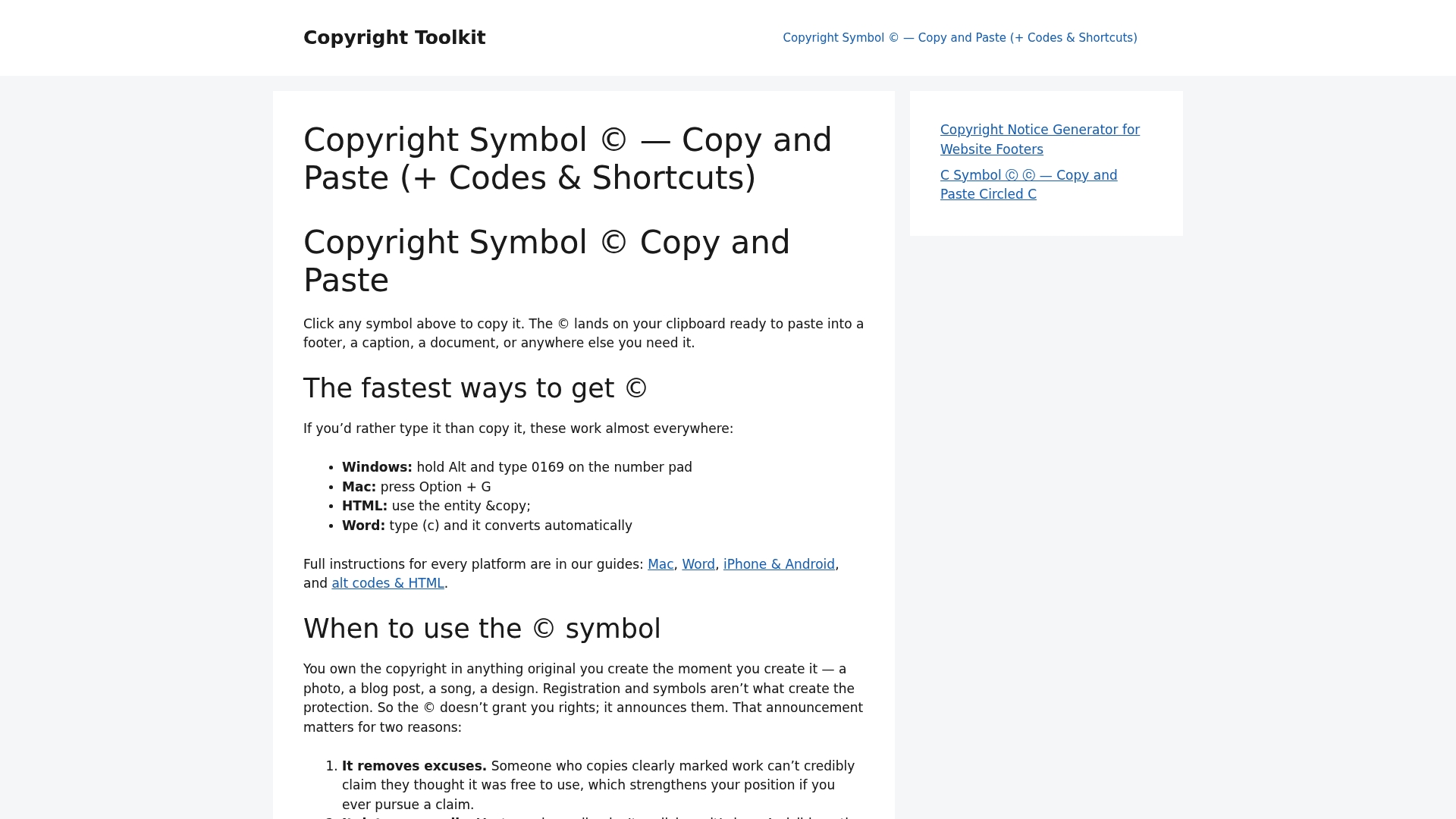
Copyrighttoolkit gives you every IP symbol ready to copy in one click, plus platform-specific guides for Windows, macOS, mobile, and HTML. No hunting through character maps, no memorizing hex codes. Visit Copyrighttoolkit to grab any symbol instantly, or go straight to the registered trademark symbol guide if ® is what you need next.
Sources
- Add symbols to an email in Outlook for Windows
- How to type copyright, trademark and registered symbols on Mac
- Copyright Symbol: How to Use, Type, and Place It – LegalClarity
- How to Type and Use Copyright and Trademark Symbols
- How to Type The Copyright Symbol on Mac, Windows, Android and Chromebooks